1. Creating the Manifest File
First, create a JSON file in the ./AppData/Roaming/Hytale/UserData/Packs/YourPackName/Server/Item/Items/your_block.json directory.
Then insert the content into the JSON file - example format is below:
{
  "TranslationProperties": {
    "Name": "server.Example_Block.name"
  },
  "MaxStack": 100,
  "Icon": "Icons/ItemsGenerated/Example_Block.png",
  "Categories": [
    "Blocks.Rocks"
  ],
  "PlayerAnimationsId": "Block",
  "Set": "Rock_Stone",
  "BlockType": {
    "Material": "Solid",
    "DrawType": "Cube",
    "Group": "Stone",
    "Flags": {},
    "Gathering": {
      "Breaking": {
        "GatherType": "Rocks",
        "ItemId": "Rock_Stone_Cobble"
      }
    },
    "BlockParticleSetId": "Stone",
    "Textures": [
      {
        "All": "BlockTextures/Example_Block.png"
      }
    ],
    "ParticleColor": "#aeae8c",
    "BlockSoundSetId": "Stone",
    "BlockBreakingDecalId": "Breaking_Decals_Rock"
  },
  "ResourceTypes": [
    {
      "Id": "Rock"
    }
  ]
}
2. Creating Translation and Texture Files
Next, create a texture file in ./AppData/Roaming/Hytale/UserData/Packs/YourPackName/Common/BlockTextures/your_block_texture.png with your desired texture for your block.
Then you can create a translation file for your Pack, which will contain the name of your block. To do this, create the file ./AppData/Roaming/Hytale/UserData/Packs/YourPackName/Server/Languages/es-US/server.lang and then, add an entry matching the path shared in your manifest file, for example:
Example_Block.name = Example Block
3. Modify in Asset Editor
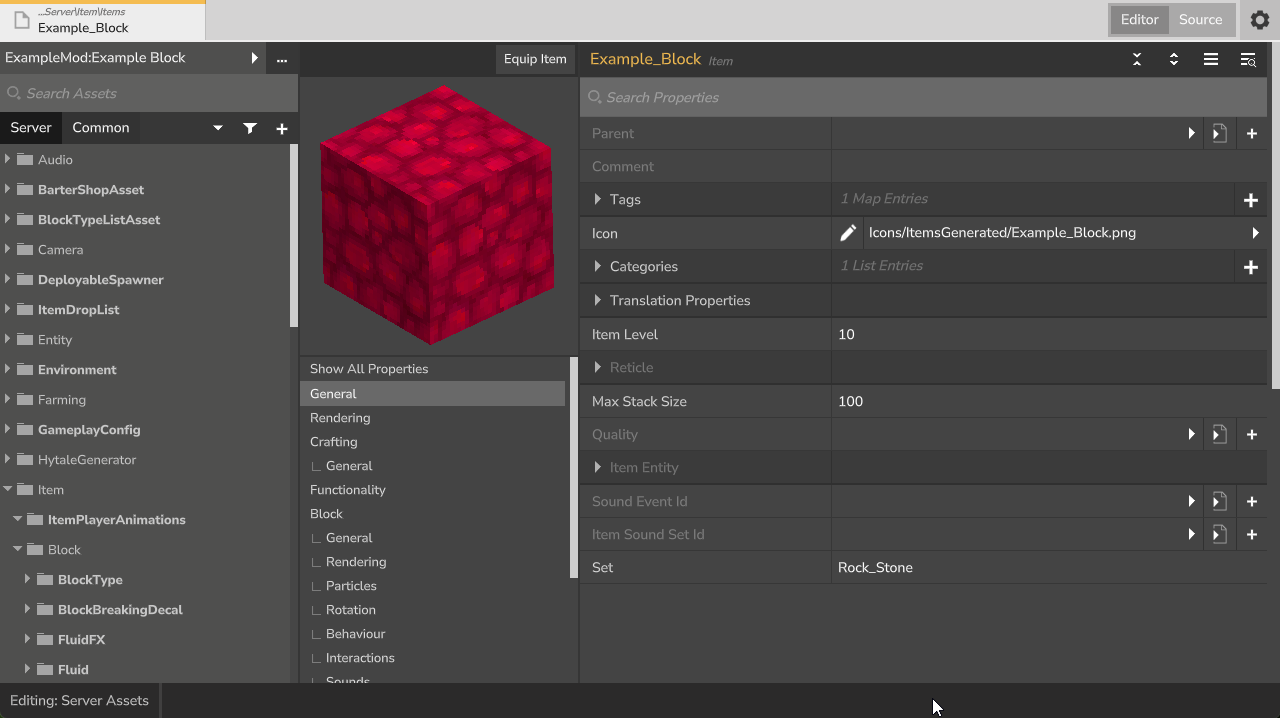
Now that you have the files created, you can edit the properties and details of your block through the Asset Editor!
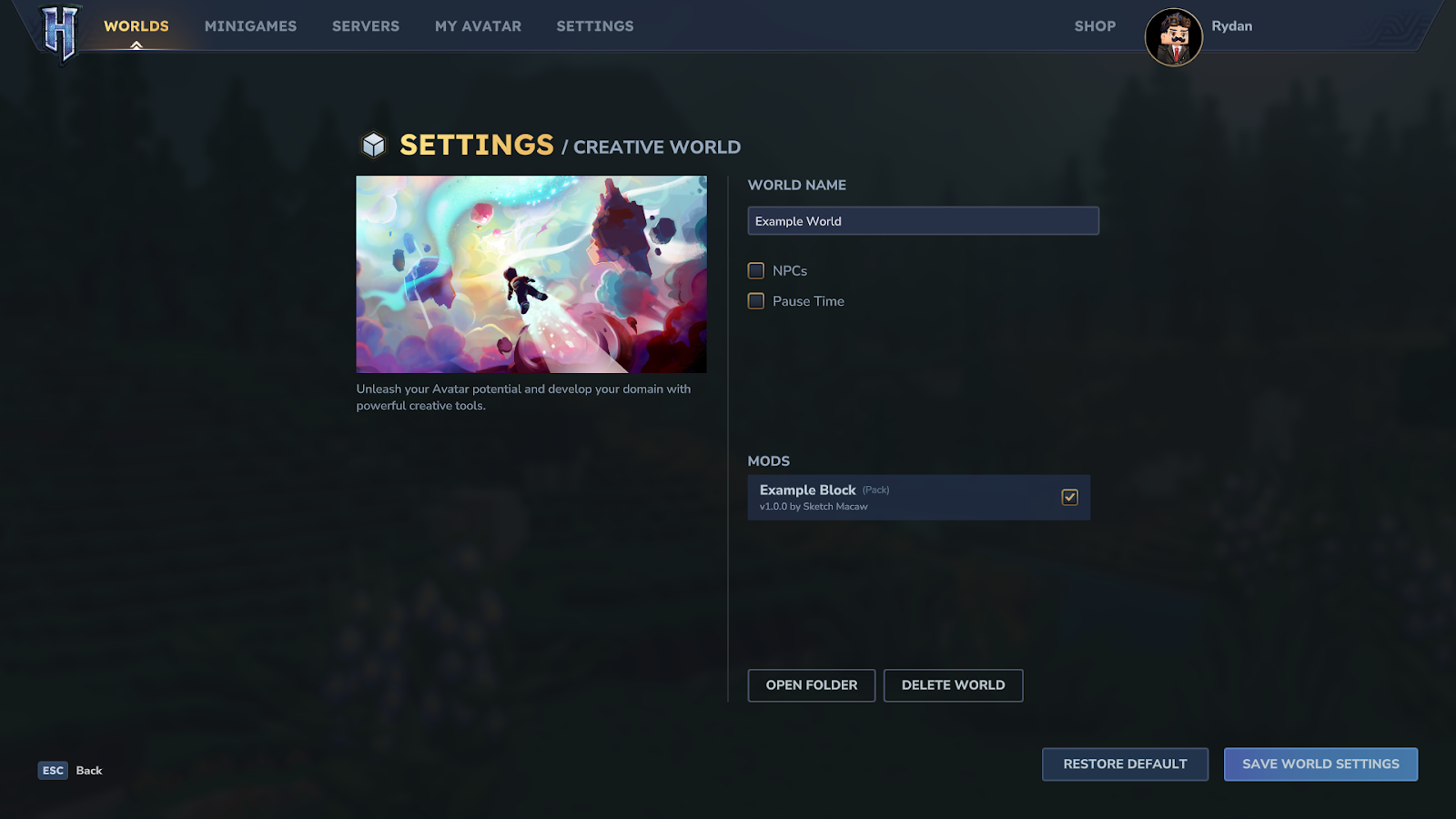
First, add the Pack to your world:
- Open Hytale
- Visit the “Worlds” tab, and right-click on the world you wish to add it to, then select the toggle on the mod you wish to add
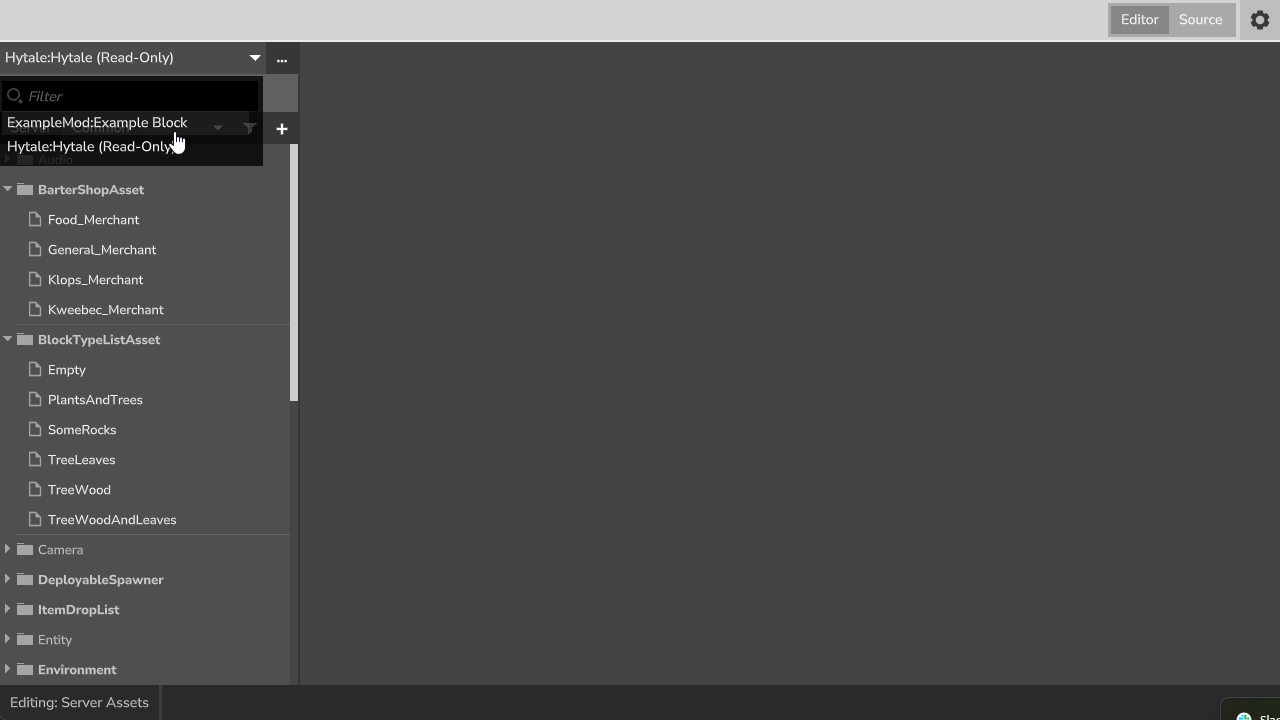
- Enter the world, then open your inventory and click on the “Creation Tools” tab, then click on “Asset Editor”
- This will then open the Asset Editor, where you can select the Pack you wish to edit and modify any settings you desire.
Thank you to Sketch Macaw for their help creating this tutorial.