If your Hytale mods aren't loading, most issues come down to file location, world settings, or version compatibility. This article walks through the most common causes and how to fix them.
Take me to...
- Quick fixes to try first
- Packs vs. plugins
- Common causes of mod failure
- Confirm your mod install location
- Enable mods in your world
- Match game and mod versions
- Install required dependencies
- Test mods one by one
- Check the log files
Quick fixes to try first
Before troubleshooting further, check these three things:
- Are the mod files in the right location?
Hytale loads mods from the main UserData/Mods folder for all saves, or from a world-specific mods folder if the mod should only apply to one world. - Are the mods enabled for your world?
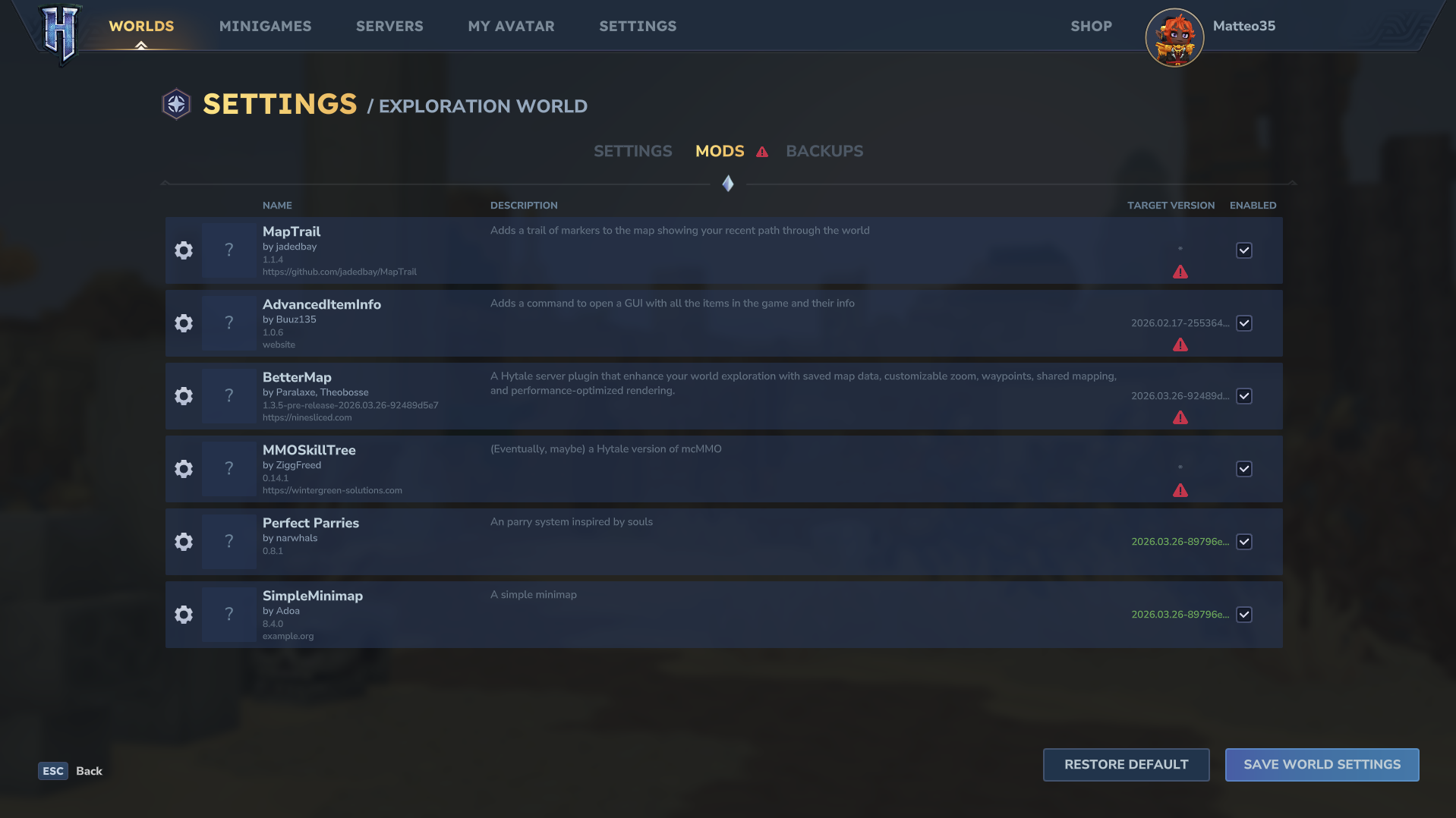
Having the file in the right place isn't enough- right-click your world, select Mods, check the box next to each mod then click Save World Settings. - Do the mod and game versions match?
A red warning icon next to a mod means it may not be compatible with your current Hytale version. If you see this, check CurseForge for an updated version of the mod.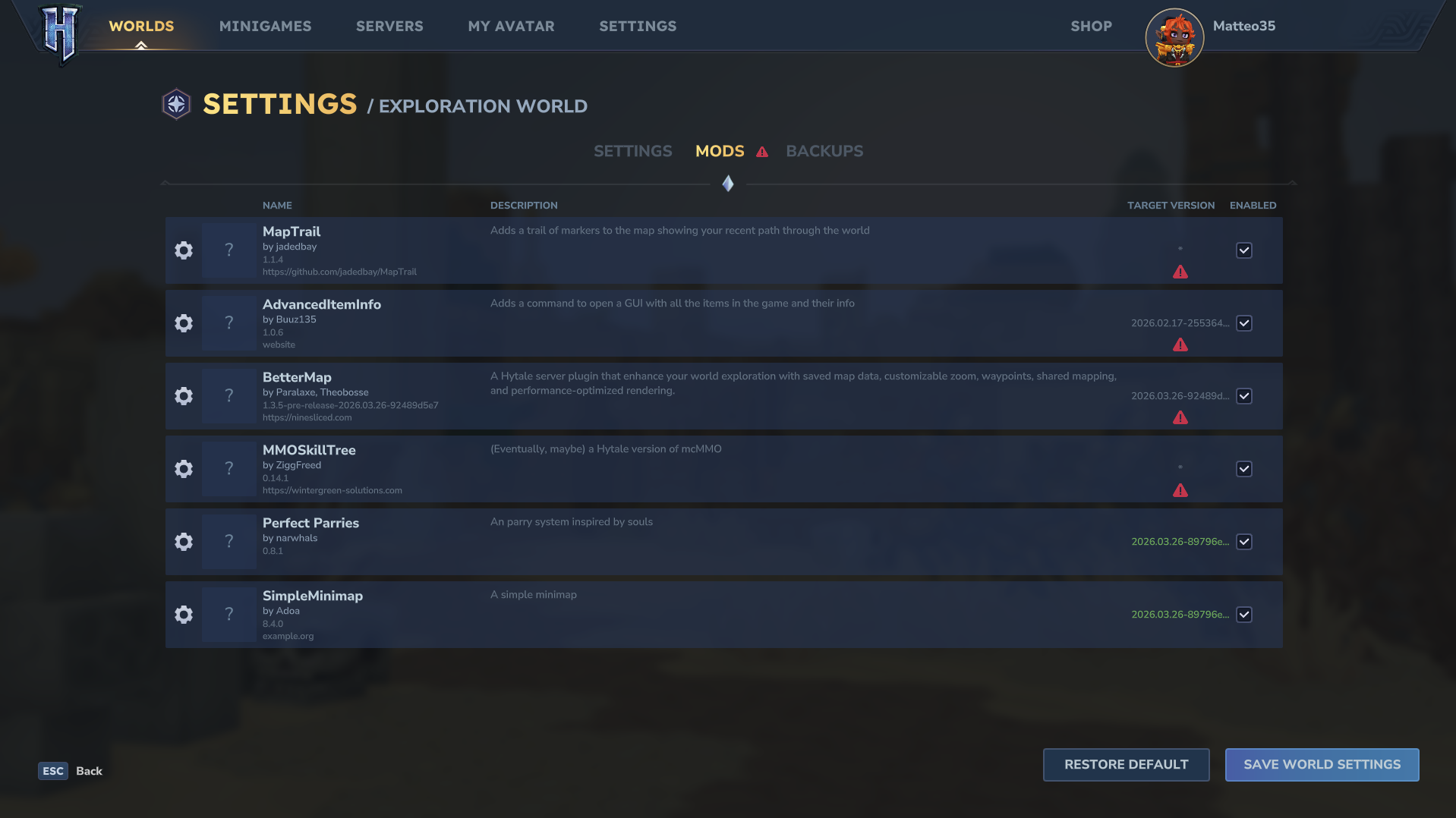
If these don't resolve the issue, the sections below cover more specific problems.
Packs vs. plugins
Before troubleshooting further, confirm which type of mod you're working with as they don't behave the same way.
- Packs are content mods, usually shared as .zip files. They add blocks, items, NPCs and other game data, and are enabled per world through world settings.
- Plugins are Java-based, server-side mods, usually shared as .jar files. They add custom commands, gameplay logic and deeper system changes.
Treating both the same way during troubleshooting can lead to confusion, so identify which type you have before continuing.
Common causes of mod failure
- Missing dependencies- some mods require extra libraries or secondary mods. If a dependency is missing, the mod may fail silently or crash the game on load.
- Duplicate or conflicting mods- two copies of the same mod, or two mods affecting the same content, can prevent either from working correctly.
- Corrupt downloads- if a file didn't fully download or became corrupted, Hytale may not recognize it. Try reinstalling the mod.
Incorrect file format packs are usually .zip and plugins are usually .jar. Renaming a file's extension can cause it to stop working.
The sections below explain how to check and fix each of these.
Confirm your mod install location
In the CurseForge app, open the menu for Hytale and select Open Mods folder to jump straight to it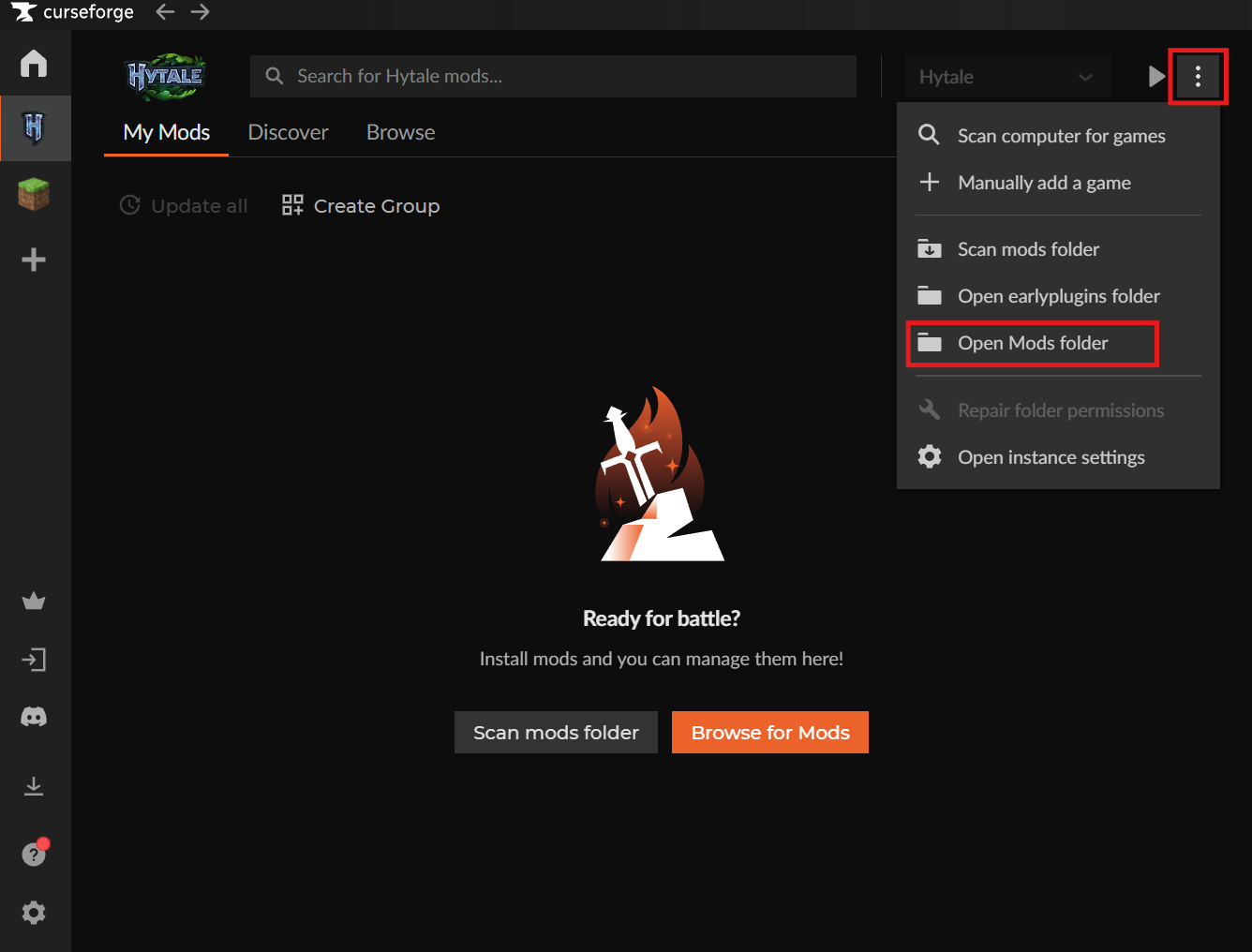
Place the mod file in Hytale\UserData\Mods if you want it available across all worlds
Common folder locations:
- Windows: %AppData%/Hytale/UserData/Mods
- macOS: ~/Library/Application Support/Hytale/UserData/Mods
- Linux: $XDG_DATA_HOME/Hytale/UserData/Mods
If you only want the mod enabled for one world, use that world's own mods folder instead.
Playing on a server? Focus on the server/world setup first. Hytale is server-driven, and players should receive content automatically when they join.
Enable mods in your world
- Launch Hytale and go to Worlds
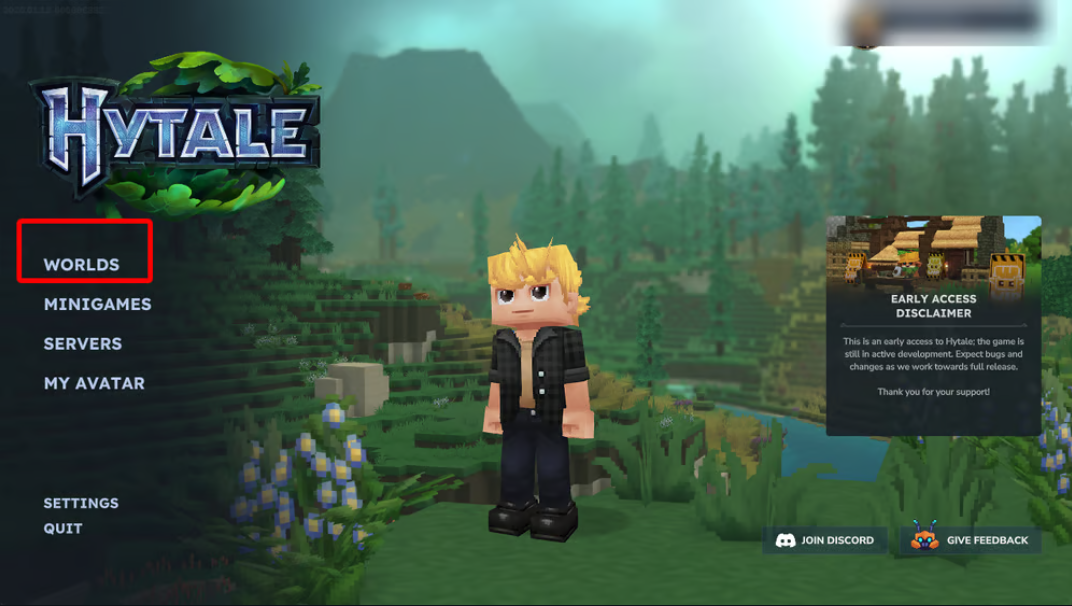
- Click the gear icon next to your world (or right-click the world and select Mods)
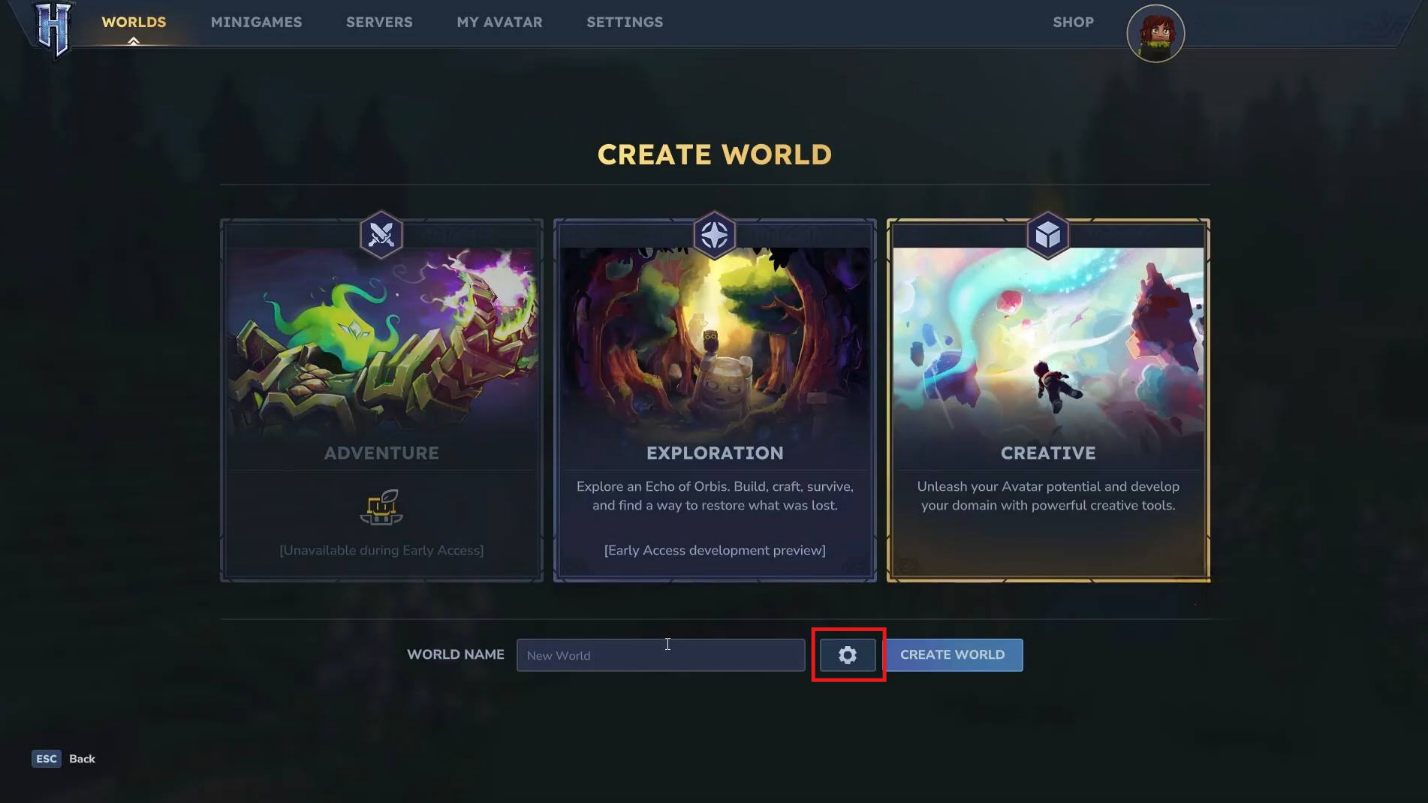
- In the Mods list, check the box next to your mod
- Click Save World Settings
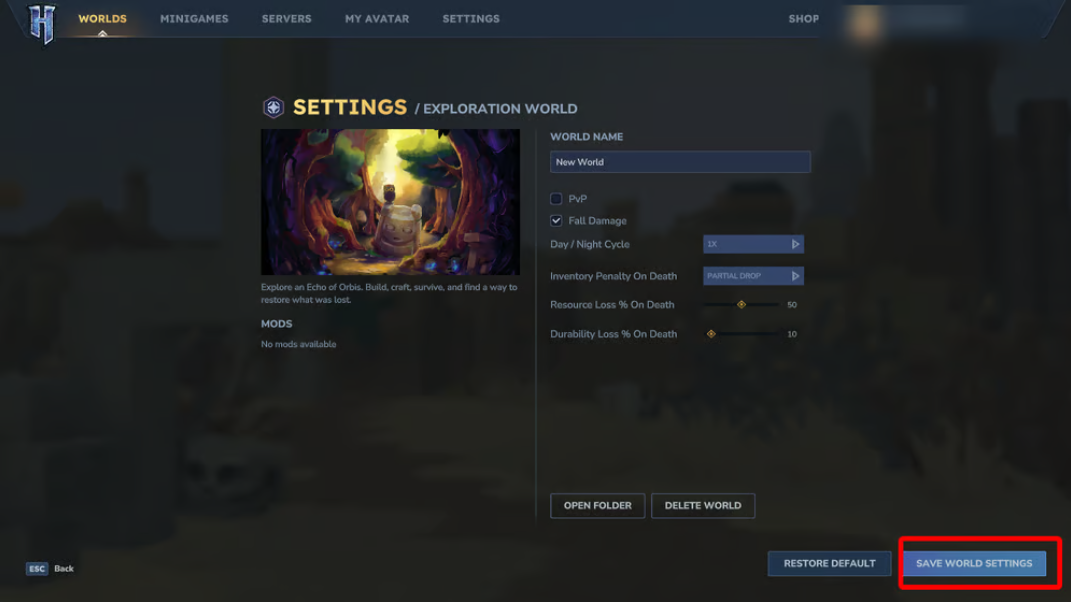
If the mod doesn't appear in the list at all, confirm it's in the correct folder and compatible with your game version.
Match game and mod versions
Check the mod's CurseForge page or file description to confirm it supports your current Hytale version. If the versions don't match, update either the mod or the game.
Install required dependencies
- Check the mod's CurseForge page for any listed dependencies
- Check the Relations tab on the project page to see whether each dependency is marked Required or Optional
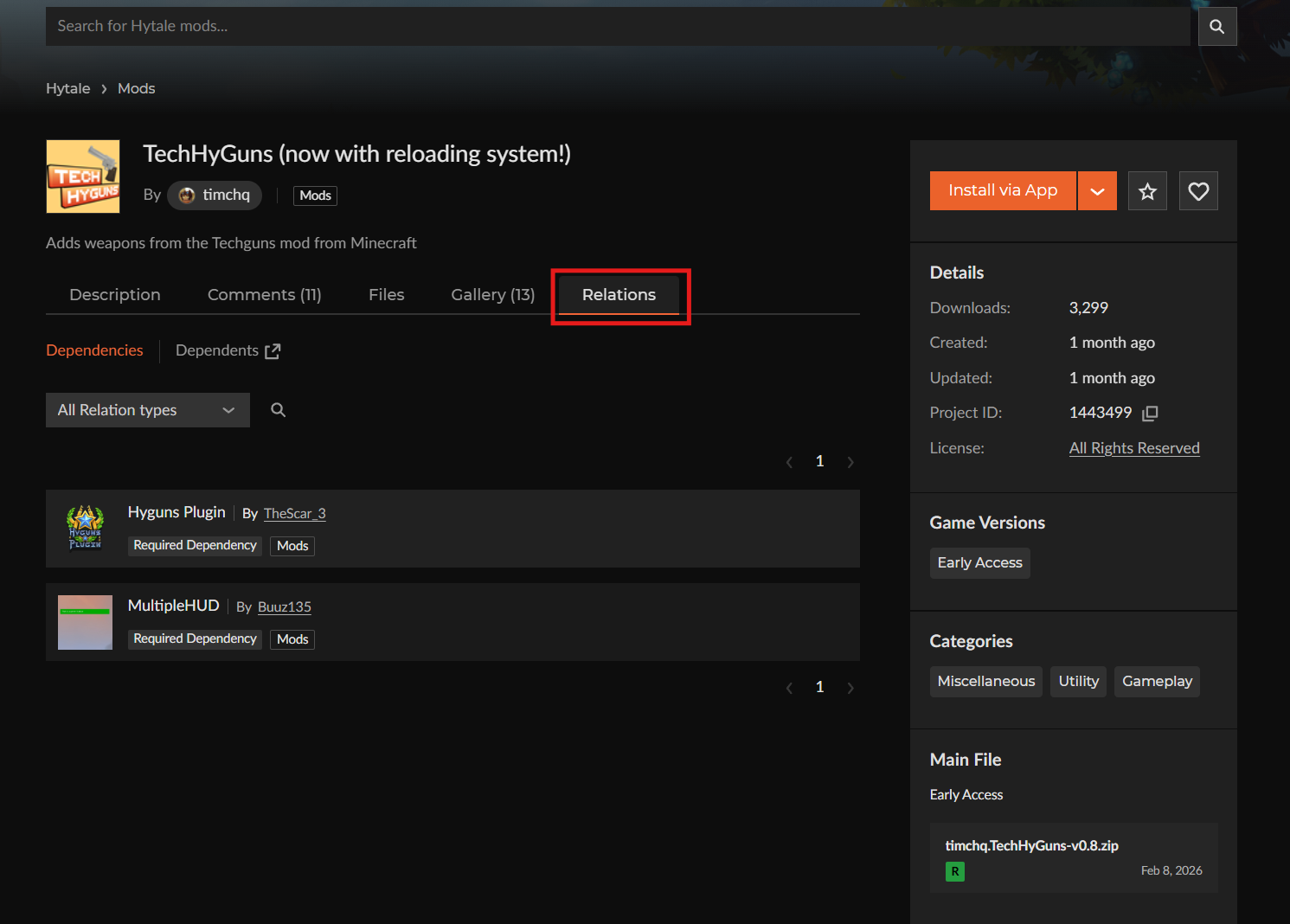
- Install required dependencies into the same mods folder as the main mod
- Enable the dependencies in the same world settings as the main mod
Test mods one by one
- If the game crashes or freezes, disable all mods except the one you're testing
- If it works on its own, re-enable your other mods one at a time until you find the conflict
- Remove any duplicate copies of a mod, keeping only one version in the folder
Check the log files
If a mod still fails silently, check Hytale's log files:
- Client issues: Hytale\UserData\logs (check latest.log)
Server/world issues: Hytale\UserData\Saves\[world]\logs
Search the log for the mod's name or terms like Error, Exception, or Failed. This usually points to whether the issue is a version mismatch, a missing dependency, or a load error.